
Host your images
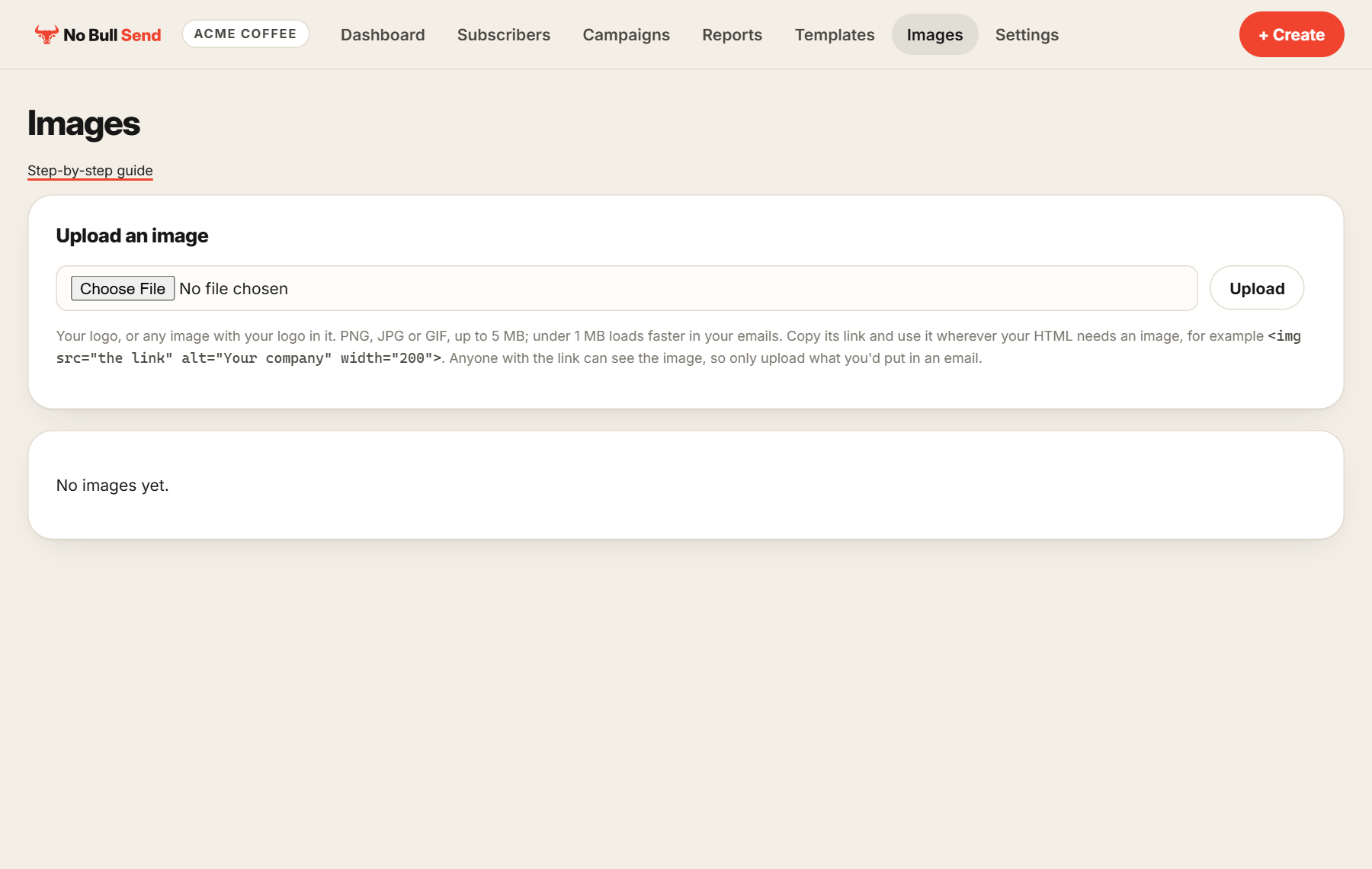
Images in an HTML email have to live somewhere online. Upload your logo or any other image here, copy its link and use it anywhere in your HTML.
1. Upload
Go to Images, choose a file and select Upload. PNG, JPG and GIF work, up to 5 MB. Under 1 MB loads faster in your emails.
2. Copy the link
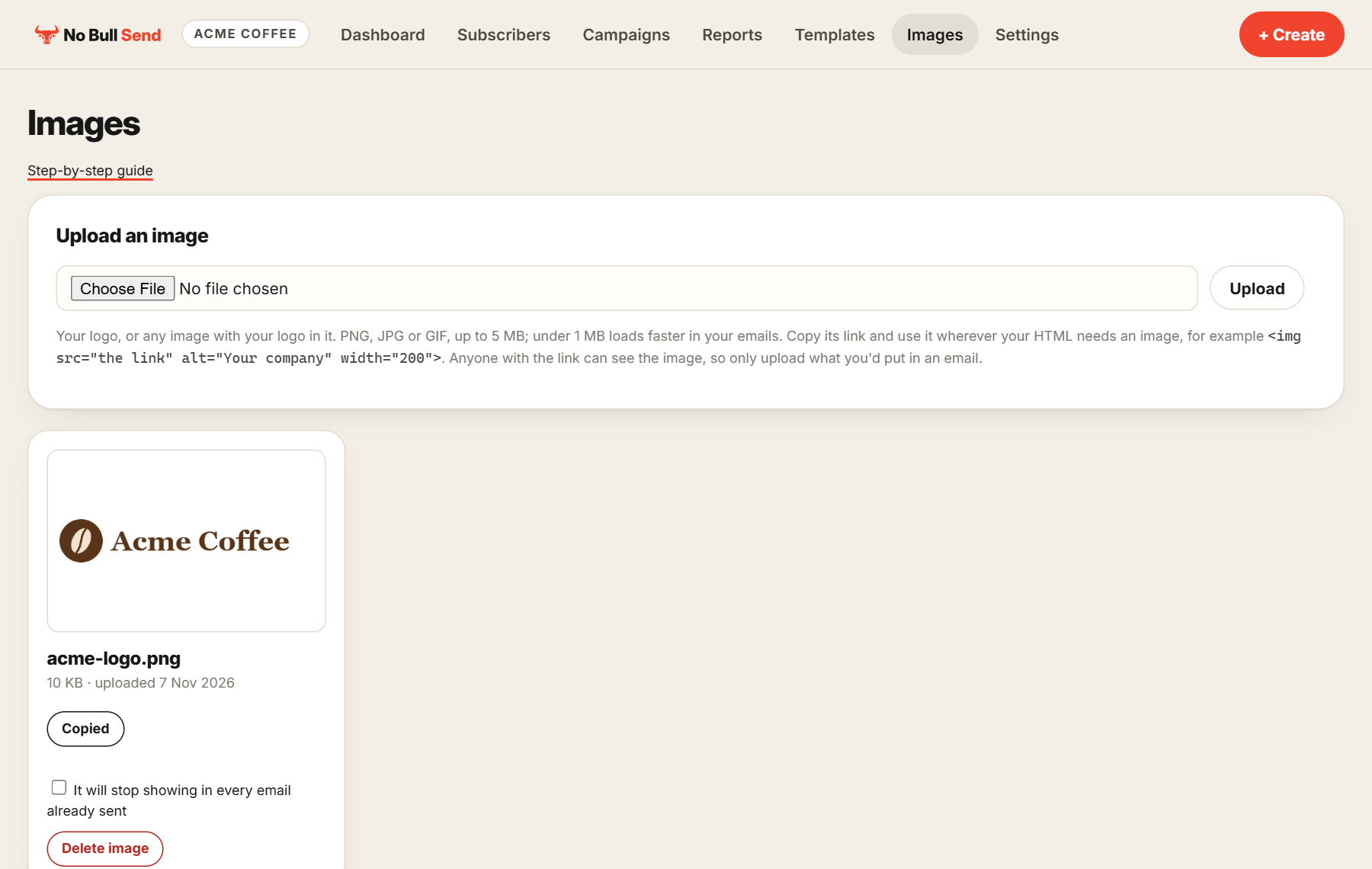
Each image has a Copy link button.
3. Use it in your HTML
Paste the link wherever your HTML needs an image:
<img src="the link you copied" alt="Your company" width="200">Always set alt, which is what people see before images load. Set width too, so the image stays the right size in every inbox.
Email signatures
A signature is just part of your template's HTML, so you can design it however you like, with your logo in it. If you need different signatures, make a template for each one.
Before you delete an image: it stops showing in every email you've already sent with it. Anyone with the link can see an image, so only upload what you'd put in an email.