
Connect your domain
Your emails send from your own domain, so a few DNS records have to go in first. It takes a few minutes, and if someone else runs your website, you can email them the steps.
1. Open the Sending domain page
In your dashboard, go to Settings and open Sending domain. It shows where you are: add the records, we check them, complete.
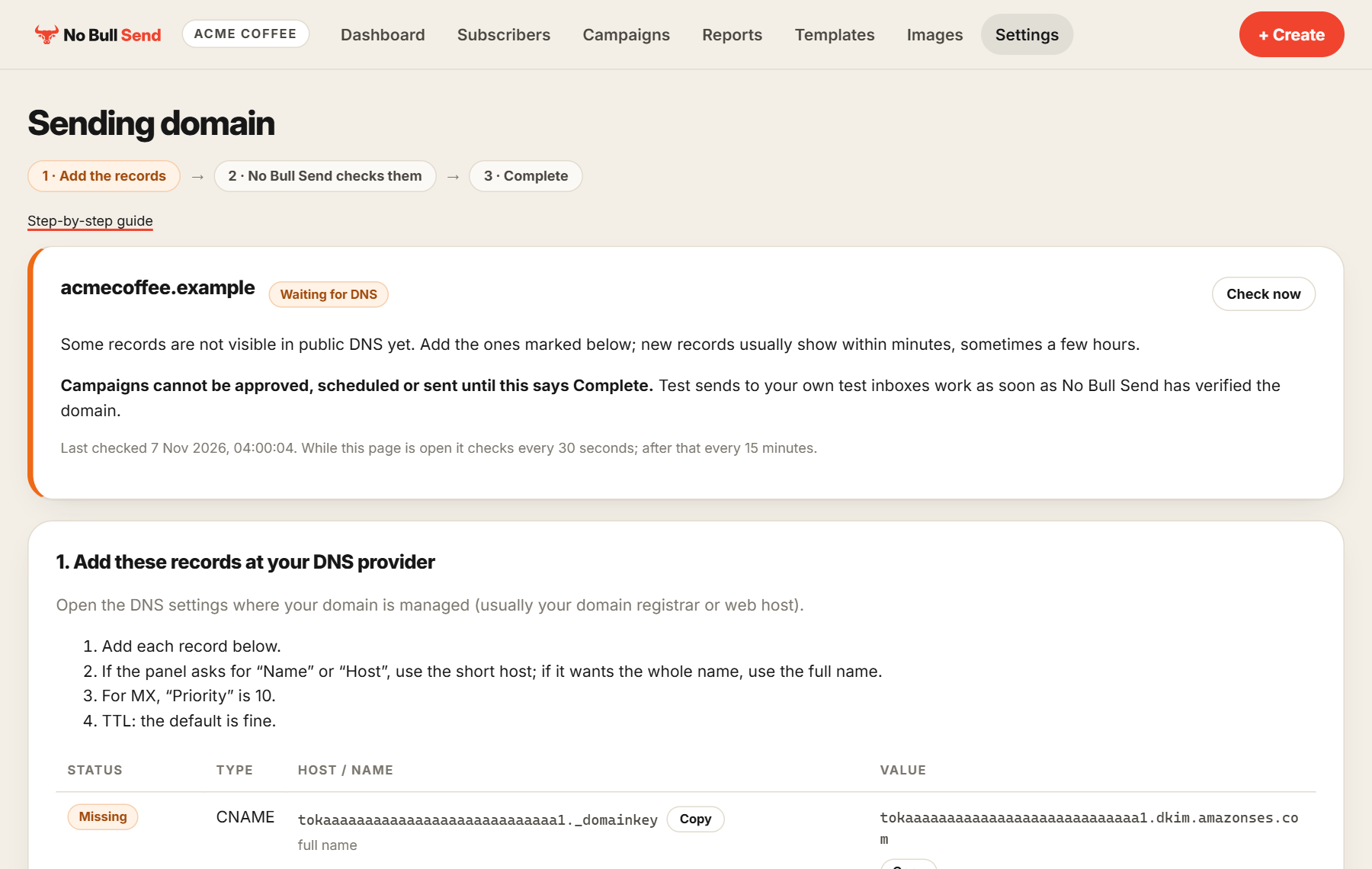
2. Add the records at your DNS provider
Open the DNS settings wherever your domain is managed, which is usually your domain registrar or web host. Then add each record from the table:
- Use the Copy buttons, because one wrong character stops a record from working.
- If your provider asks for "Name" or "Host", use the short host. If it wants the whole name, use the full name shown underneath.
- For an MX record, "Priority" is 10.
- The default TTL is fine.
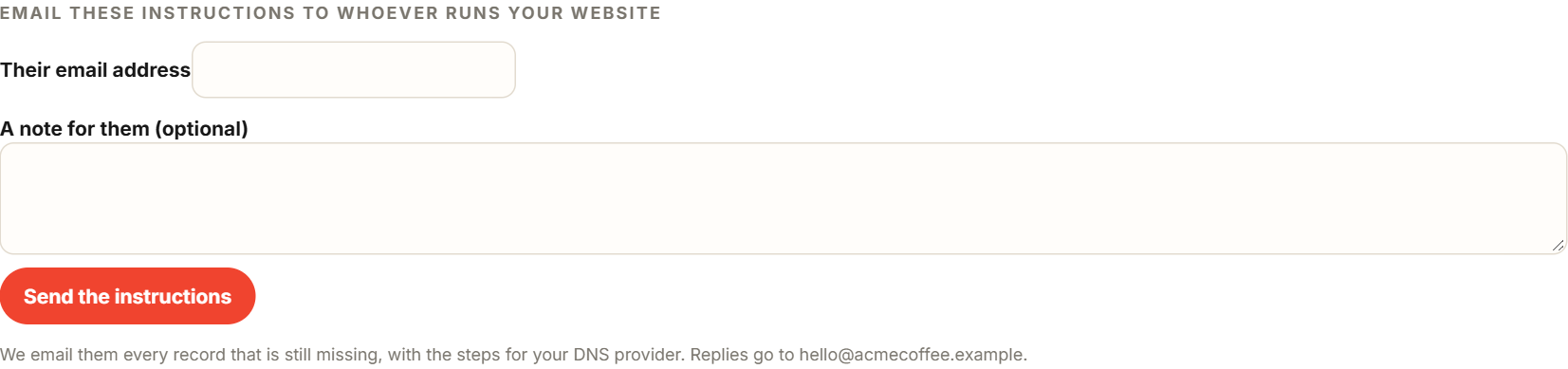
Someone else runs your website?
Use Email these instructions to whoever runs your website on the same page. We send them every record that's still missing, with the steps for your DNS provider. Their replies go to you.
3. Wait for Complete
New records usually show within minutes, and sometimes take a few hours. We check every 30 seconds while the page is open and every 15 minutes after that, so you can close it. Check now runs a check straight away.
When every record is found, the page says Complete.
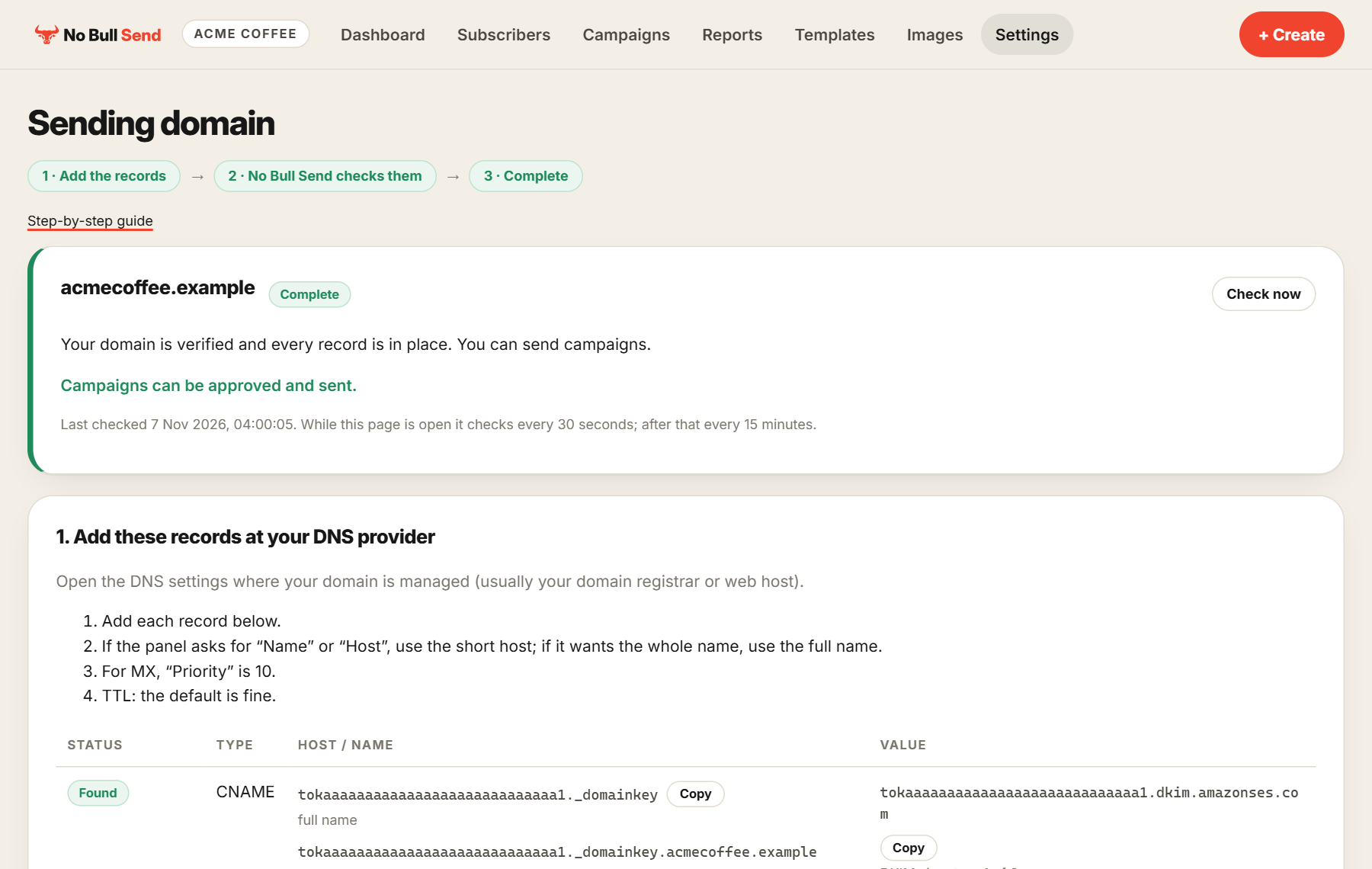
Until the page says Complete, campaigns can't be approved, scheduled or sent. You can still import your list and build templates while you wait.